

Zoom integration
Note: Zoom integration is still in development, features described below will be available soon.
Zoom integration lets you create meetings right in the system — from the calendar as well as from direct and group chats.
Requirements
- Permission to install apps in your Аспро.Cloud account (account administrator).
- A Zoom account for every employee who is going to create meetings.
- (for meeting recording, AI summary, and transcript) — Zoom Pro plan or higher. Creating and joining meetings works on any plan, including Free.
Attendees do not need to connect their own Zoom account — it is only required for the person who creates meetings.
Install the app
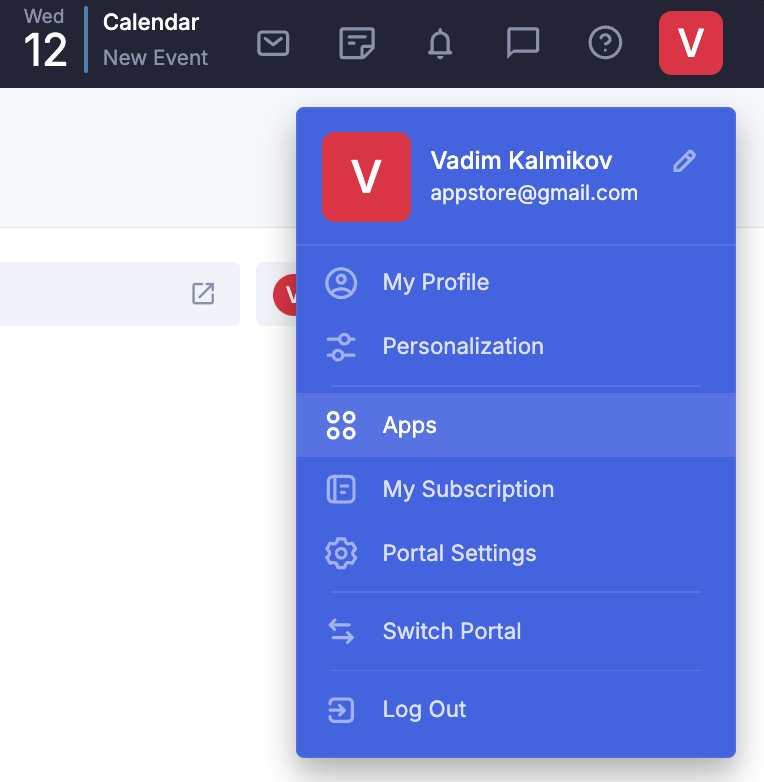
Click your profile picture in the top right corner and go to the Apps section.
Find Zoom in the list of apps, open the app page, and click Install
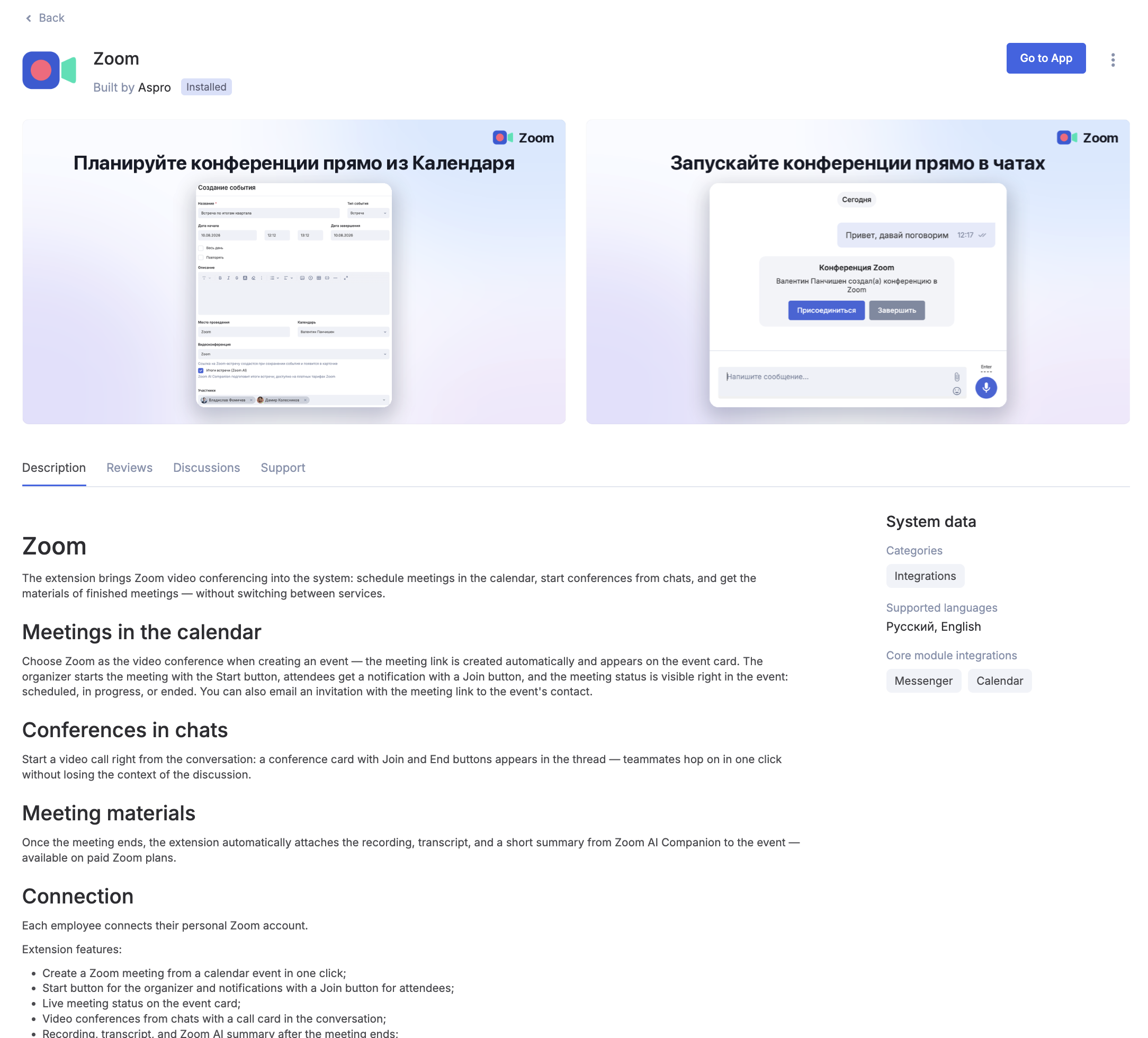
After the app is installed, you can open it in two ways:
- from the app page
- using the icon in the left side menu
If the Zoom icon has not appeared in the left side menu, click "More" — it will be there.
Go to Zoom and click "Connect Zoom"
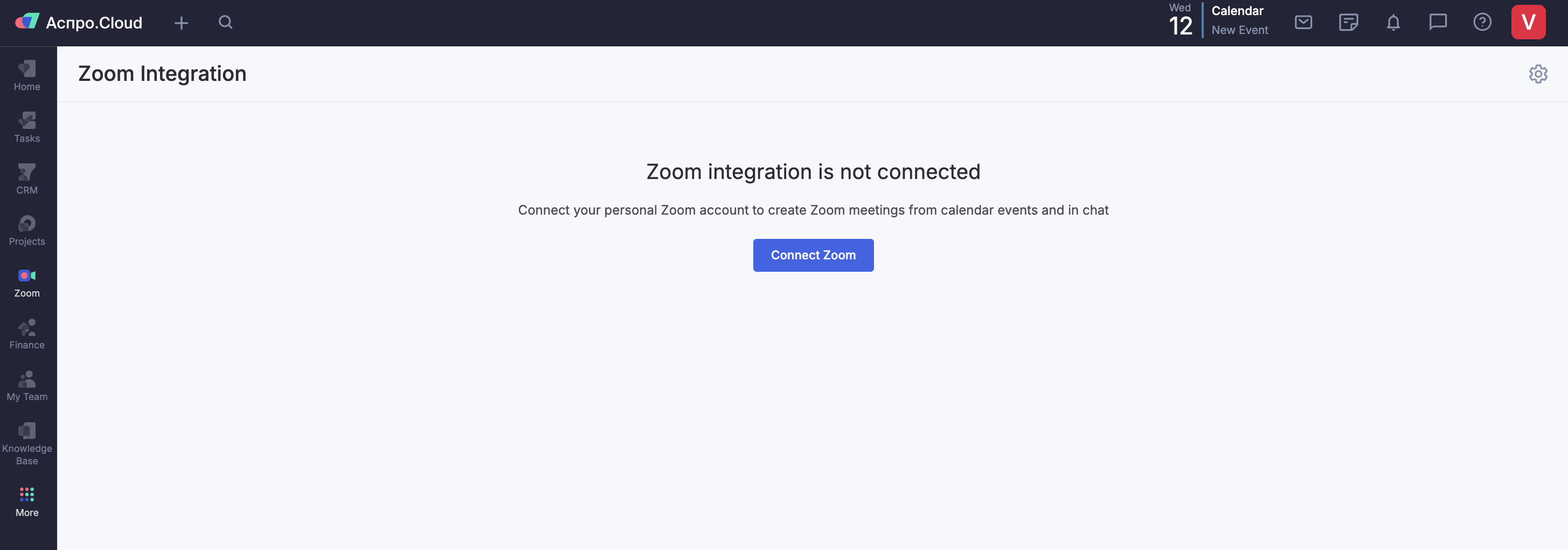
Review the requested permissions on the Zoom consent screen and approve them.
Once the app is installed, users who will be creating meetings need to connect their personal Zoom account.
Note: One Zoom account can be connected to only one user in Аспро.Cloud. If the account is already connected the system will show an error when a different user tries to connect the same account.
What the app asks for
When you click Connect Zoom, the app requests permission to:
- create, update, and delete meetings on your behalf;
- read your Zoom profile in order to link it to your portal user;
- start a meeting where you are the host without signing in to Zoom again;
- fetch the recording, transcript, and summary of finished meetings that were created through the integration.
The integration only works with meetings created in Аспро.Cloud and does not access the rest of the meetings in your Zoom account.
Using the app
How to create Zoom meetings
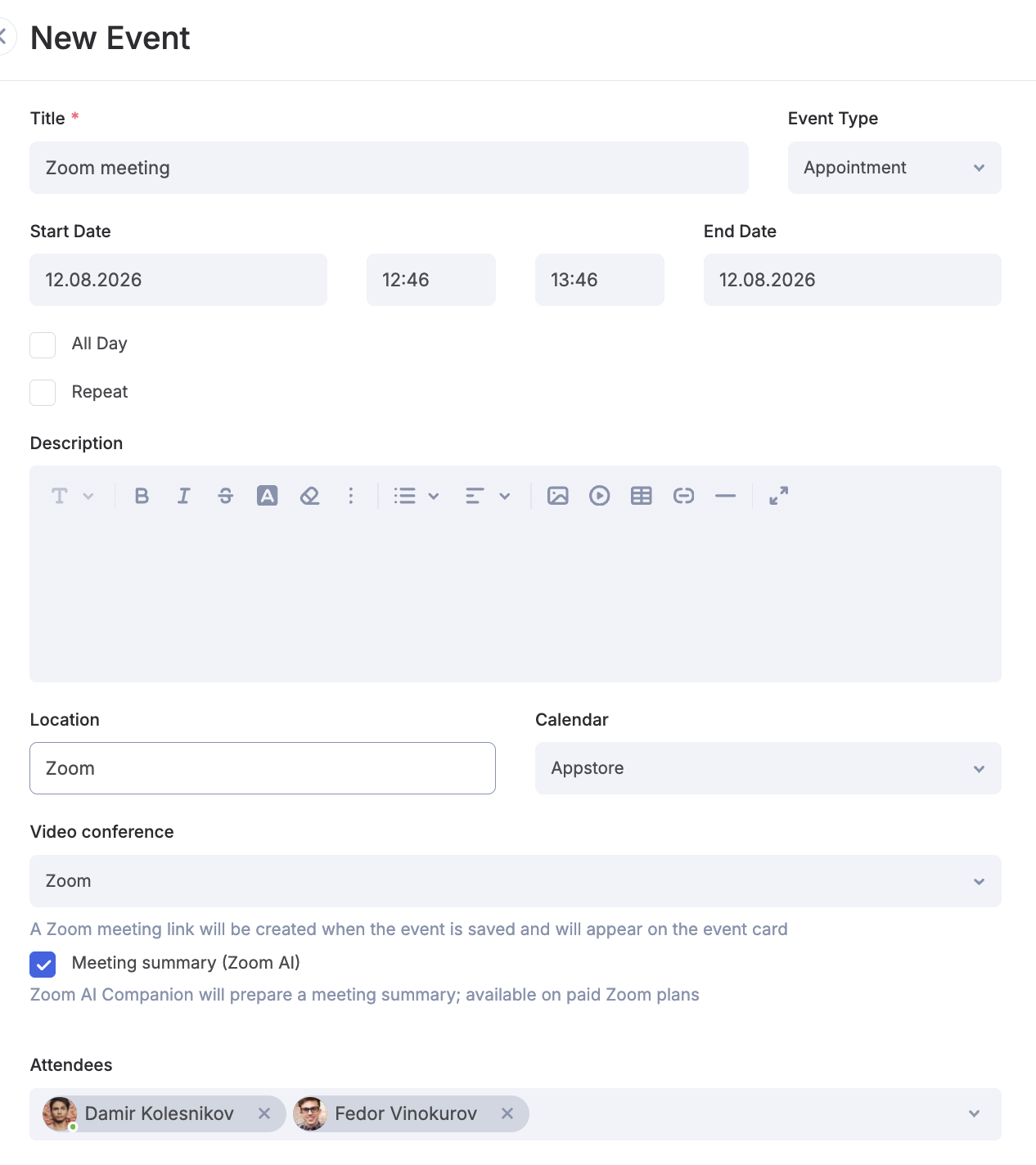
When creating an event, you will find a Video conference section. Click on the dropdown list and select Zoom.
If you need a summary after the meeting, tick the Meeting summary (Zoom AI) checkbox.
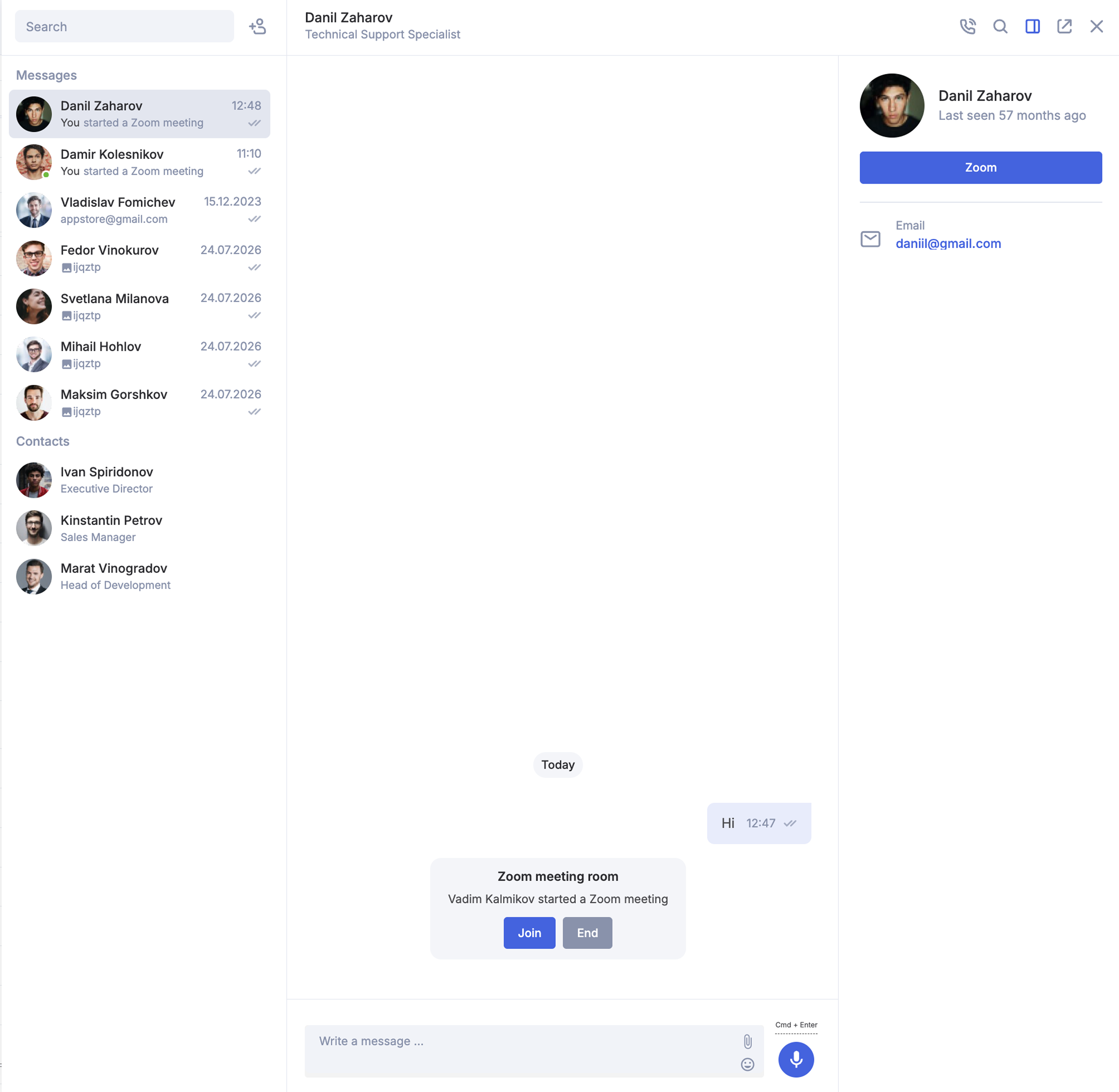
You can also create meetings in private or group chats, users will be able to join a meeting from a conversation.
Starting and joining meetings
Only the event organizer can start the meeting using the Start button.
As soon as the meeting starts, all attendees receive a notification, and a Join button appears both in the notifications and on the event card.
Only the event organizer has the conference link. If the event is linked to a contact, the join link is sent to their email automatically, but only after the organizer starts the meeting.
You don't need to connect your own Zoom account to join a meeting — only the person who creates meetings needs it. For example, if you have connected Zoom and the person you are talking to has not, a call button will appear in your dialog with them anyway: they will be able to join your meeting, but won't be able to create their own meeting.
Meeting recording, AI summary, and transcript
With a Zoom Pro plan or higher, after the meeting ends the event card will show:
- the meeting recording;
- an AI summary;
- a transcript of all conversations.
Based on the summary, the system will suggest creating tasks right from the event card — no need to transfer agreements manually.
Troubleshooting
There is no Zoom option in the event form. Either the app is not installed, or your personal Zoom account is not connected. Open the Zoom section — there must be an active connection.
"This Zoom account is already connected by another user" One Zoom account can be linked to only one Аспро.Cloud user. Connect a different Zoom account, or ask your colleague to disconnect it on their side.
The meeting link was not created. Most often the access was revoked on the Zoom side or the connection has expired. Open the Zoom app in Аспро.Cloud: if the connection is inactive, connect the account again and re-save the event.
The meeting status has not changed. The status is updated by Zoom notifications and by periodic polling, so it may take a few minutes. If it takes longer, make sure the meeting has actually been started in Zoom.
The recording, summary, or transcript did not appear. Make sure you are on a Zoom Pro plan or higher, cloud recording is enabled, and Zoom AI Companion is enabled. Zoom processes these records after the meeting ends, which usually takes a few minutes.
The contact did not receive the invitation email. The email is sent only after an organizer starts the meeting, and only if an event has a contact with an email address.
Removing the app
Disconnect your Zoom account. Go to Zoom app in Аспро.Cloud, find your connection in the list, and delete it. The system stops creating meetings on your behalf and the stored access tokens are deactivated.
Revoke access on the Zoom side. Open zoom.us → Settings → Installed Apps, find Аспро.Cloud and click Remove. The connection will disappear from Аспро.Cloud automatically.
Uninstall the app completely. Click your profile picture in the top right corner → Apps → Zoom → Uninstall. Zoom section will disappear from the menu, calendar event cards, and the call button will be removed from chats.
What happens to your data after removal:
- new meetings are no longer created and the Start button is unavailable;
- meetings and links that were already created stay on the event cards and in chats — they keep working as long as they are valid on the Zoom side;
- recordings, summaries, and transcripts already downloaded to an event card remain in the system;
- Zoom access tokens are deleted and are not reused.
